Prepare an After Effects project for a template build
This guide prepares an Adobe After Effects project so Storyteq can build a video template from it. Follow it before you hand your files over, so the template matches your video and renders quickly.
If you build video templates yourself with the Extension for After Effects, the same project rules apply, and Troubleshoot template building in After Effects covers the problems that come up during a build.
To compare your project with a working example, download an example After Effects project (ZIP, 202 MB).
Before you begin
Before you begin, ensure you have:
-
A final, approved video edit. Storyteq asks for picture lock before the build starts, and Picture lock explains why.
-
Adobe After Effects.
-
A list of what should be editable in the template.
Build one project for the template
-
Combine every size and duration the template needs in one After Effects project.
-
Build the different sizes from the same source material wherever you can.
-
Use the same frame rate in every composition.
-
Create a separate composition for the fallback image. The platform renders a still fallback image alongside each video, and the fallback image can change with the video’s content.
Avoid third-party plugins
The render servers don’t have third-party After Effects plugins installed.
-
Use only native After Effects effects on dynamic elements.
-
If a part of the video that never changes uses a plugin, pre-render that part and use the rendered file in the project.
Organise the project
-
Create a folder in the Project panel for each type of item: footage, graphics, images, audio, and pre-compositions.
-
Name each dynamic composition and layer after what it is, using the names from your brief.
-
Pre-render any image sequence, such as a PNG sequence, as a
.movfile, with an alpha channel if it needs transparency. -
Supply video footage at its final resolution. For example, if a 4K clip sits in a 1920 × 1080 composition, pre-render the clip at 1920 × 1080.
-
Keep the number of compositions low. You can often combine effects, position, and scale in one composition.
-
Use a placeholder image or video for each element that people replace, at the exact size and duration of the files that replace it.
-
Use native After Effects shape layers for any box behind dynamic text.
Simplify the final project
Once the video is final, simplify the project:
-
Remove everything the project doesn’t use.
-
Pre-render the parts that never change.
-
If the same dynamic element appears in several places or sizes, pre-compose it once and reuse the pre-composition everywhere it appears. The build team then adds the dynamic logic once, instead of in every copy.
Keep dynamic parts light
Dynamic parts of the video render for every adaptation, so keep them as light as possible. These rules apply only to the parts that change.
-
Avoid cameras and lights, which slow rendering considerably.
-
Use a mask rather than alpha footage as a matte.
-
Choose the lightest effect that does the job, such as Fast Box Blur instead of Gaussian Blur, or a Brightness adjustment instead of Lumetri Color.
-
Don’t apply the same effect twice to the same element: increase the effect on one layer instead.
-
For motion tracking, use Mocha and its corner-pin data, and keep the tracked composition close to the output size, to avoid unnecessary scaling.
Set up dynamic text layers
-
Make each dynamic text layer point text, not paragraph text. To convert a layer, select the text box with the Type tool, open its context menu, and select Convert To Point Text.
-
Leave every paragraph indent at
0, and set the line height in the Character panel, not the Paragraph panel. -
Keep each text layer’s scale at 100%, and change the text’s size with the font size instead.
-
Set the font size to the largest size the text can use. The template scales text down to fit its area, never up.
Mark boundary boxes
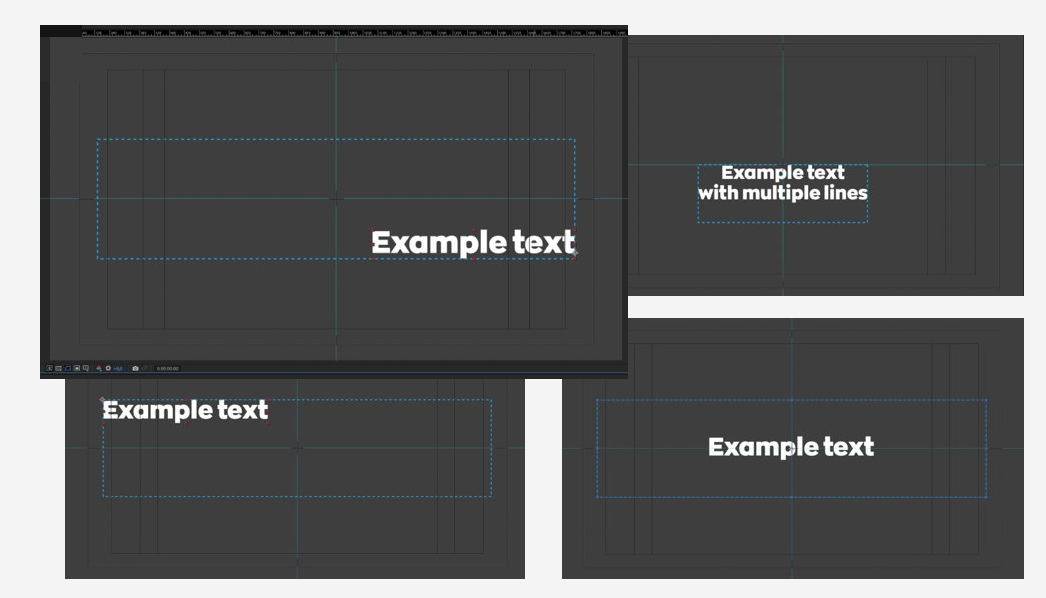
Show the build team the area each dynamic text field or image can fill, and the direction it can grow.
-
Draw a shape that covers the area the element can fill.
-
Select the shape’s layer, then select Layer > Guide Layer. A guide layer is visible while you work, and never appears in the render.
Build modular scenes
If the template has modular scenes, which people can swap or skip, build the project in scenes:
-
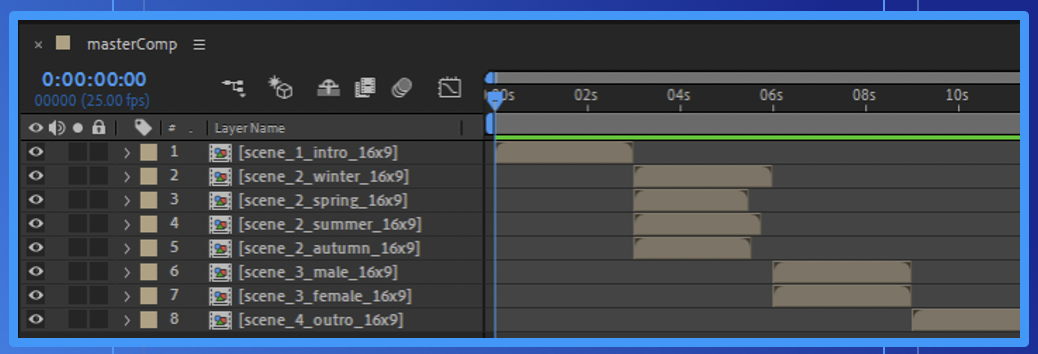
Put each scene in its own pre-composition.
-
Make each pre-composition exactly as long as that scene.
-
Create a master composition with the scenes in order.
-
Stack the scenes that can replace each other above one another, at the same point in the timeline.
Scenes that replace each other can have different lengths. The gaps that leaves in the master composition don’t appear in the rendered video.
Add audio
-
Keep any background soundtrack separate from the scenes. The soundtrack is added at render, so it plays without breaks when the video’s length changes.
-
Supply audio as a common format, preferably
.wav.
Collect the project
-
In the Project panel, select the compositions the template uses.
-
Select File > Dependencies > Collect Files, and reduce the project to the selected compositions. After Effects copies the project and every file it uses into one folder.
-
Add the font files for every font the project uses, because Collect Files doesn’t include fonts. If the template is localised, add the fonts for any extra character sets, such as Cyrillic or Arabic.
-
Add a rendered reference video (
.mp4) of the finished result.
Write the brief
-
List every dynamic element: durations, sizes, scenes, uploadable images and video, audio, and text fields.
-
For each text field, give the maximum number of characters.
-
Add any rules the template must follow, such as scenes that only appear together.
Hand over the files
-
Create one folder for the template.
-
Inside it, create a folder for each type of file: the collected project,
Fonts, andReference files. -
Put the brief in the main folder.
-
Leave out anything from earlier, later, or other projects.
-
Send the folder to your Storyteq project manager, using the route you agreed with them, such as SharePoint, WeTransfer, or email.